Text Editor - CKEditor
Overview
This guide provides instructions on using the Text Editor in MAXRES Construct. The editor, powered by CKEditor, offers a rich set of text formatting options to help you efficiently create and manage content in the Author environment.
Objectives
By following this guide, you will:
- Apply text formatting options such as bold, italics, and underlining.
- Use lists, text alignment, and tables within the text editor.
- Navigate and execute actions using keyboard shortcuts for common operations like cut, copy, paste, and undo.
Requirements
- Platform Access: Permissions to edit content in MAXRES Construct.
Roles
This guide is designed for:
- Course Authors
- Content Developers
- Instructional Designers
Process
1. Text Editor Controls
The text editor in MAXRES Construct includes tailored CKEditor controls for creating structured and formatted content. Below are the key formatting options available:
Formatting Options
-
Bold: Makes the selected text bold. Shortcut: Ctrl + B.
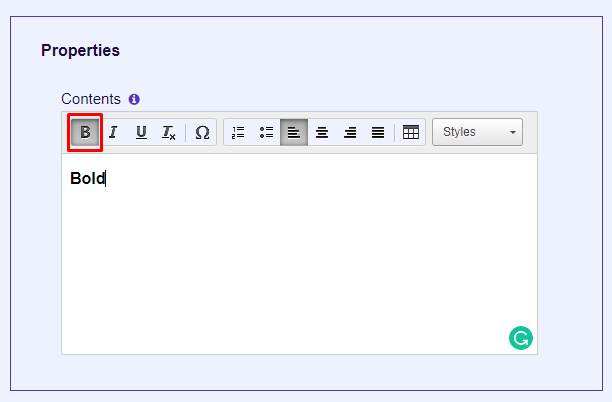 Fig. 1: Bold Text
 -
Italic: Italicizes the selected text. Shortcut: Ctrl + I.
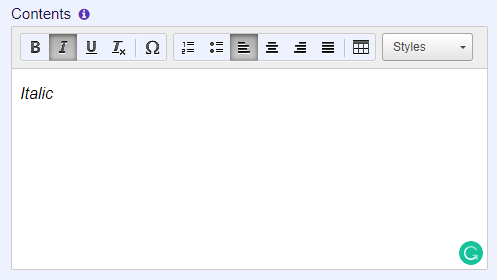 Fig. 2: Italic Text
 -
Underline: Underlines the selected text. Shortcut: Ctrl + U.
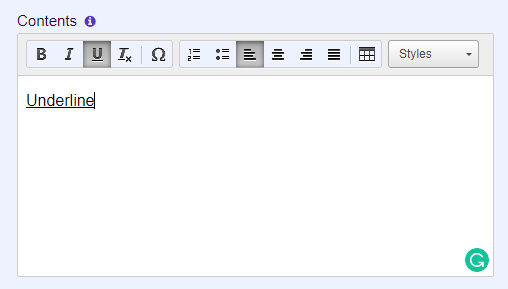 Fig. 3: Underline Text
 -
Remove Formatting: Removes all formatting from the selected text. Use Ctrl + A to select all text and click this button to remove formatting across the document.
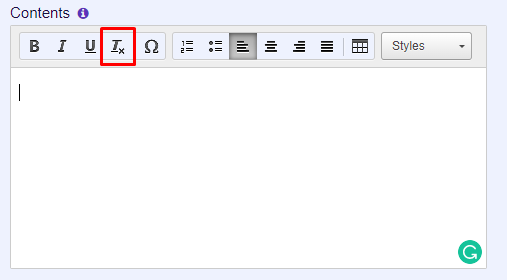 Fig. 4: Remove Formatting
 -
Special Characters: Inserts symbols using the special character table.
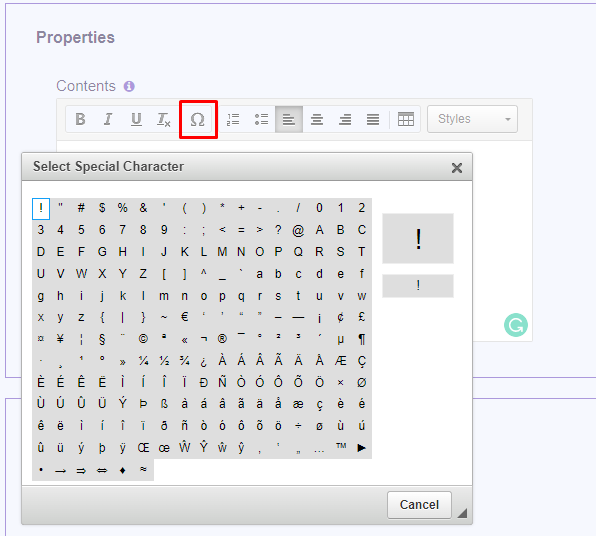 Fig. 5: Special Characters
Lists and Alignment
-
Numbered List: Adds or removes a numbered list.
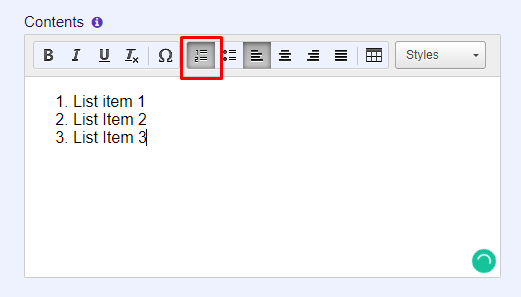 Fig. 6: Numbered List
 -
Bulleted List: Adds or removes a bulleted list.
 Fig. 7: Bulleted List
 -
Align Text Left: Aligns text to the left margin.
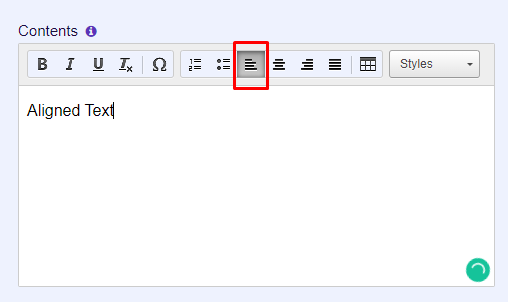 Fig. 8: Align Text Left
 -
Align Text Center: Centers the text.
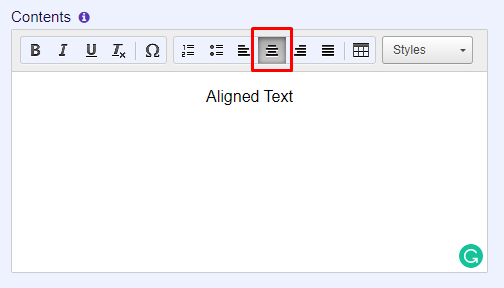 Fig. 9: Align Text Center
 -
Align Text Right: Aligns text to the right margin.
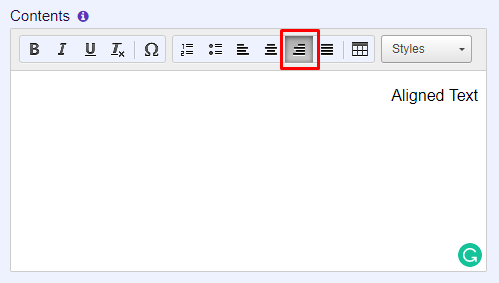 Fig. 10: Align Text Right
 -
Justify Text: Distributes text evenly across the margins.
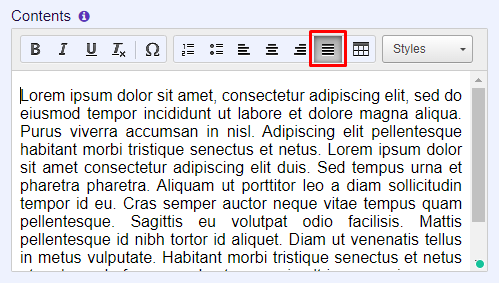 Fig. 11: Justify Text
Other Features
-
Insert Table: Opens the table creation tool to insert a table into the text.
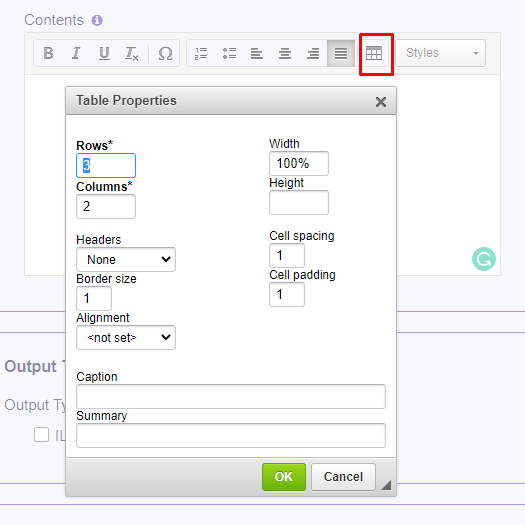 Fig. 12: Insert Table
 -
Set Styles: Applies pre-defined text styles from a dropdown menu.
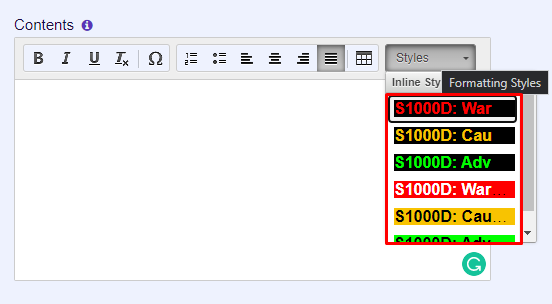 Fig. 13: Set Styles
2. Hotkeys and Shortcuts
Use the following keyboard shortcuts to improve productivity in the text editor:
Navigation
- Home: Move to the beginning of the line.
- Ctrl + Home: Move to the beginning of the document.
- End: Move to the end of the line.
- Ctrl + End: Move to the end of the document.
- PgDn / PgUp: Scroll down/up the document.
Writing
- Enter: Start a new paragraph.
- Shift + Enter: Insert a line break.
- Backspace / Del: Delete a character.
- Ctrl + Backspace / Ctrl + Del: Delete a word.
Undo and Redo
- Ctrl + Z: Undo the last action.
- Ctrl + Y / Shift + Ctrl + Z: Redo the last undone action.
Cut, Copy, and Paste
- Ctrl + X: Cut.
- Ctrl + C: Copy.
- Ctrl + V: Paste.
- Shift + Ctrl + V: Paste as plain text.
Text Selection
- Ctrl + A: Select all text.
- Shift + Arrow: Select text by characters.
- Ctrl + Shift + Arrow: Select text by words.
- Shift + Home / End: Select text from cursor to the start/end of the line.
- Ctrl + Shift + Home / End: Select text from cursor to the start/end of the document.
Text Styling
- Ctrl + B: Bold.
- Ctrl + I: Italics.
- Ctrl + U: Underline.
Rich Text
- Tab: Indent a list.
- Shift + Tab: Outdent a list.
Example
To apply bold formatting to selected text, press Ctrl + B or use the Bold button on the toolbar. For italics, press Ctrl + I or use the Italic button.
For more details on keyboard shortcuts, visit the CKEditor documentation.